
Master Claude Code Commands in 10 Minutes
Many people use Claude Code just as a chat tool, wasting 90% of its capabilities. This article provides a complete tutorial to help you master all core commands in 10 minutes!
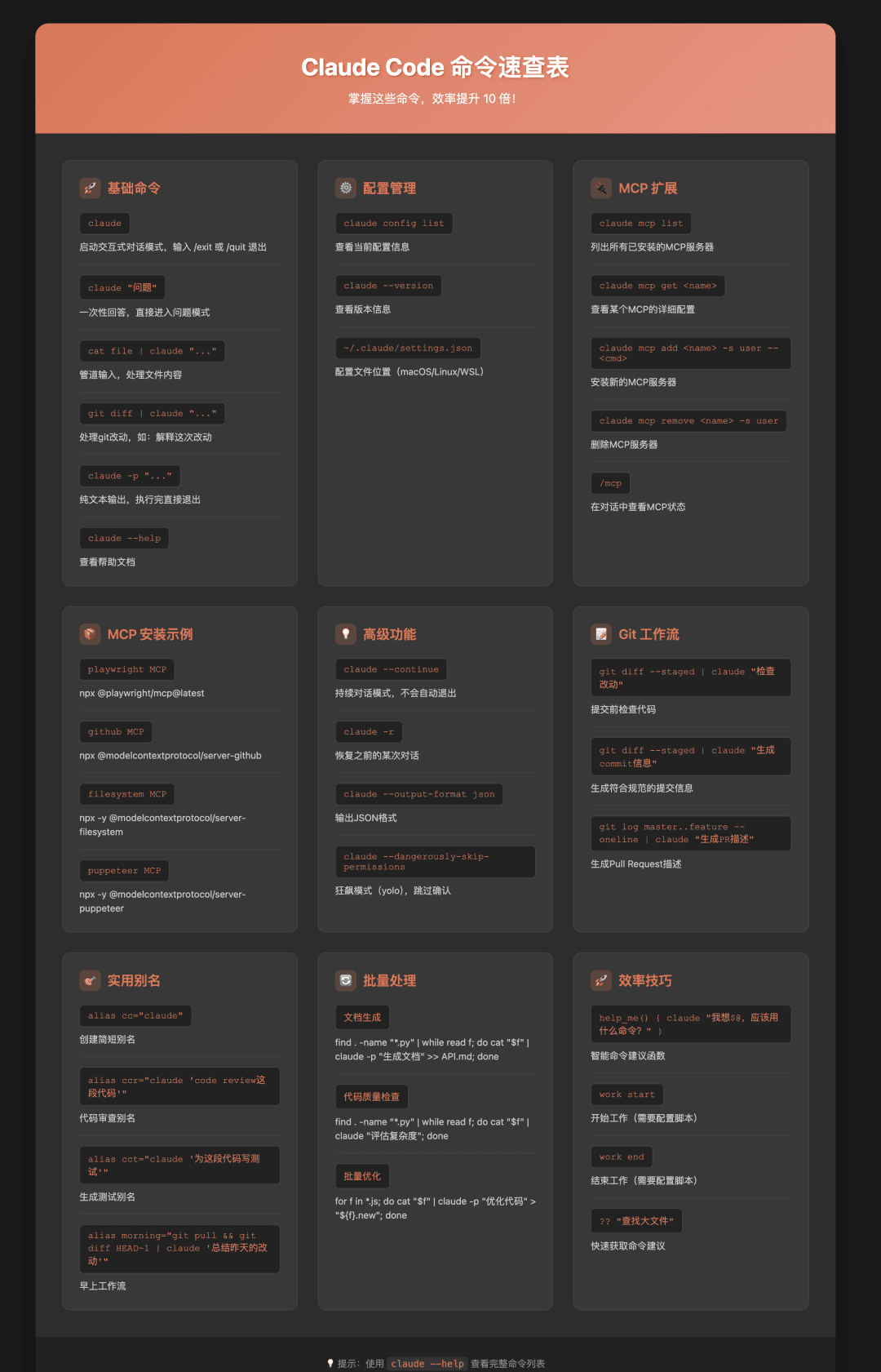
📖 Online Reference
You can bookmark this page as a command reference: https://cc-cli-help.pages.dev
1️⃣ Basic Commands - Get Started in 5 Minutes
Let's start with the simplest ones. These 5 commands can meet 80% of your needs.
1.1 claude - Start Interactive Mode
The most basic but most commonly used command:
bash
claude
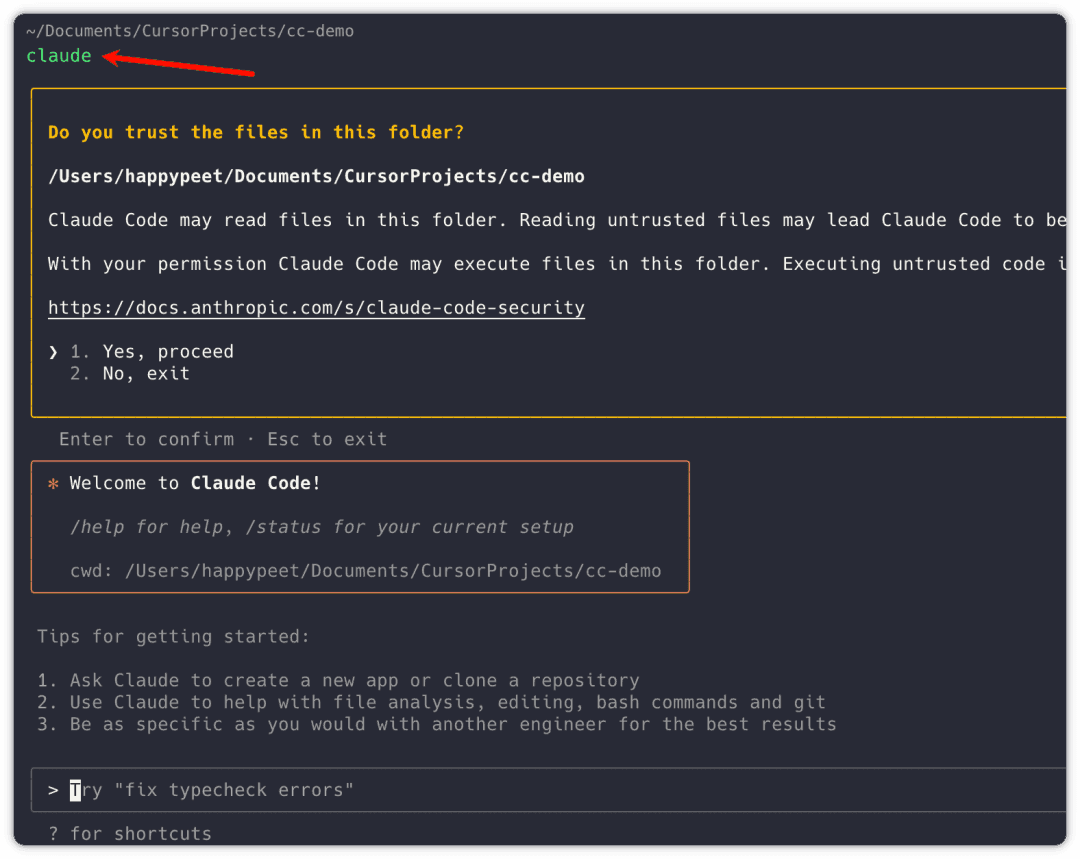
It's that simple - press Enter after typing and you'll enter conversation mode. Want to exit? Just type /exit or /quit.
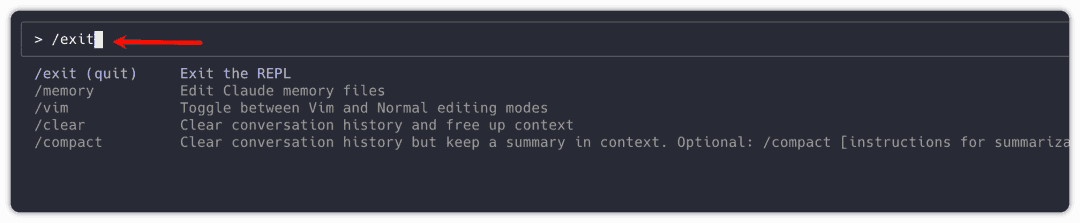
1.2 claude "question" - One-time Answer
Don't want to enter interactive mode? Ask directly:
bash
claude "What's wrong with this code?"
claude "Help me write a quicksort algorithm"
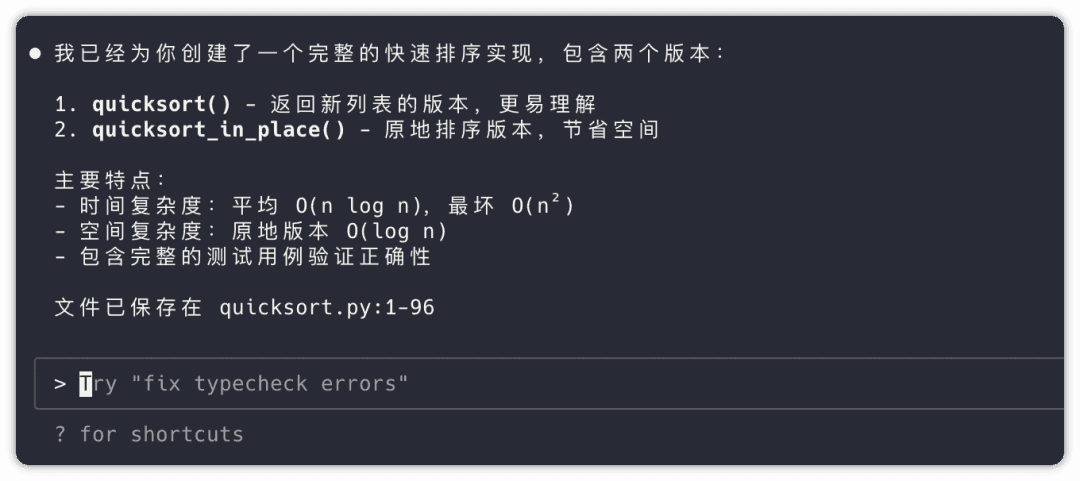
It directly enters question mode:
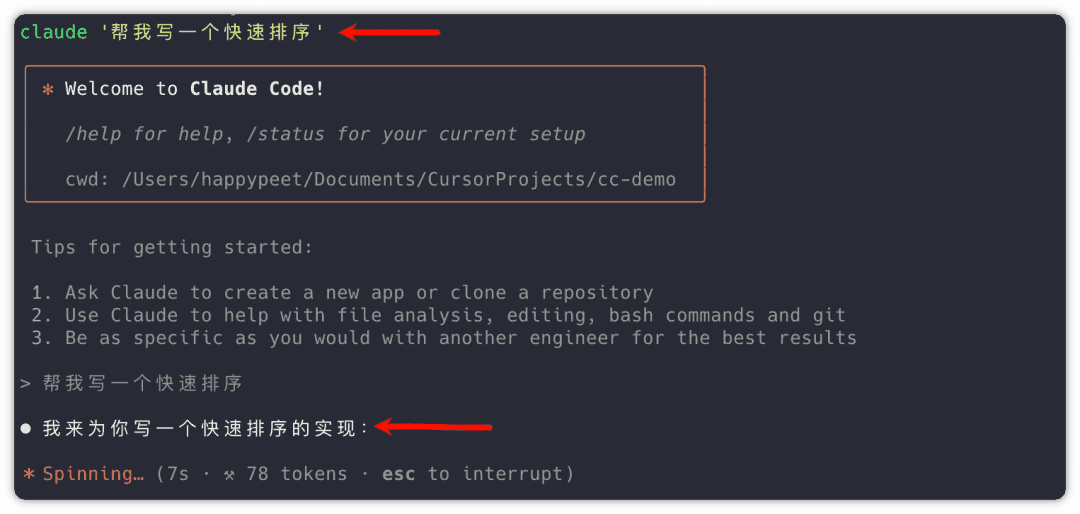
After completion, you can continue asking questions from the command line:
1.3 Pipe Processing - This Feature is Amazing
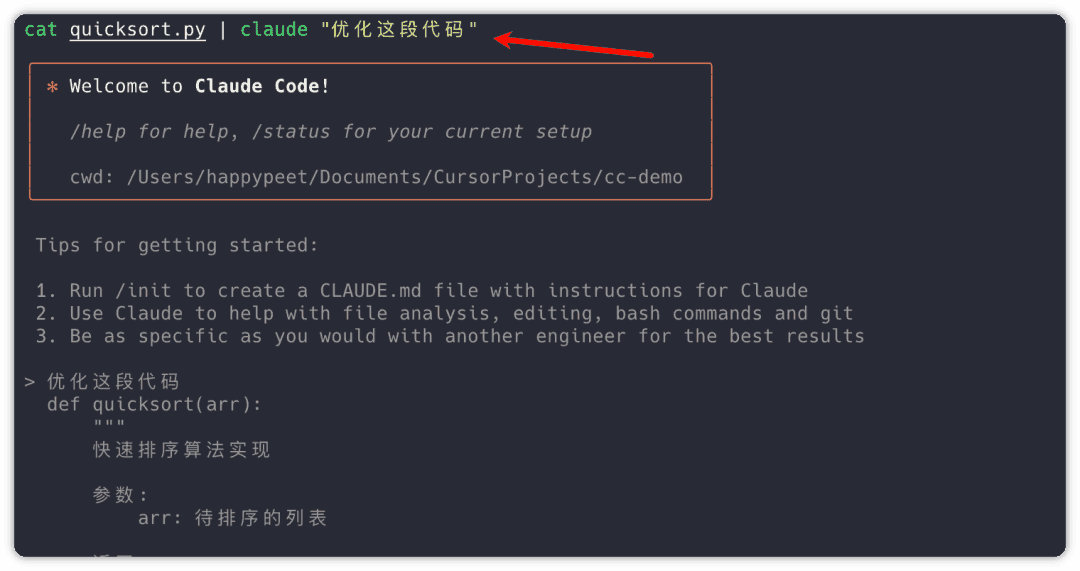
This is the most practical feature - you can directly process file content:
bash
# Optimize code files
cat quicksort.py | claude "Optimize this code"

# Translate documents
cat README.md | claude "Translate to Chinese"
You can start optimizing code directly:
You can even do this:
bash
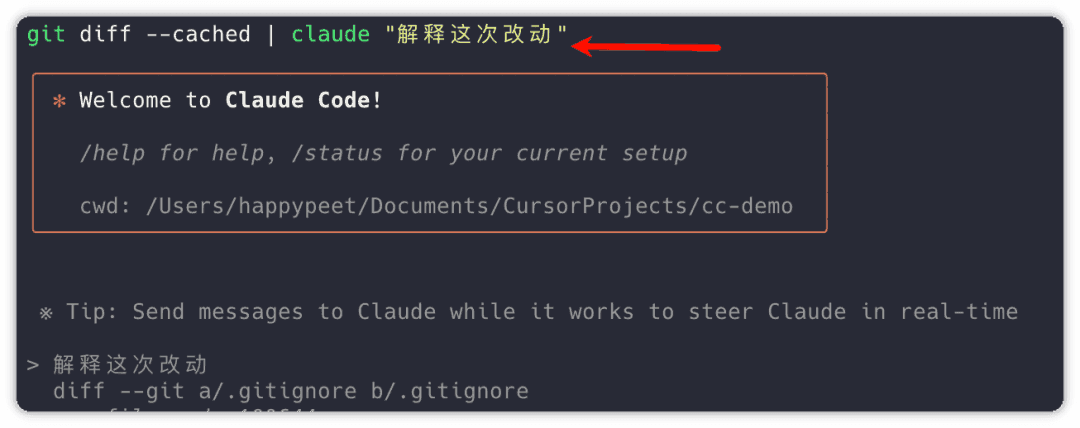
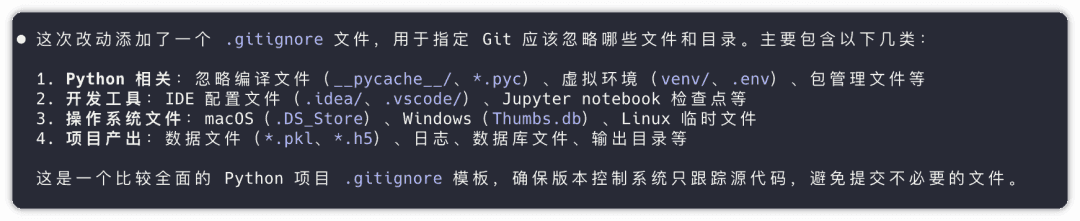
git diff | claude "Explain these changes"
See the result? No need to stupidly read dense code yourself - it summarizes everything for you at once:
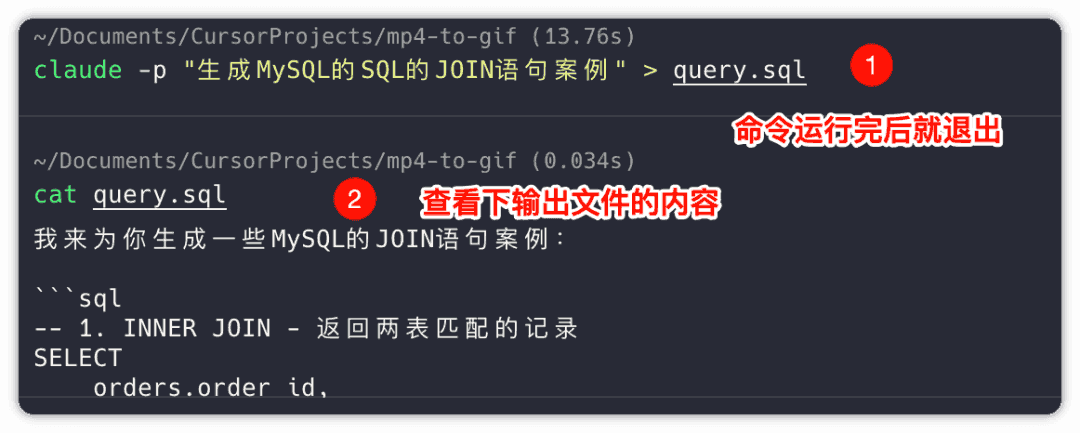
1.4 claude -p - Output Results
Default output has Markdown formatting. Adding -p gives plain text and exits directly after execution:
bash
claude -p "Generate MySQL JOIN statement examples" > query.sql
You can see that the above command exits directly after execution. No interactive parts. And outputs content:
1.5 claude --help - View Help
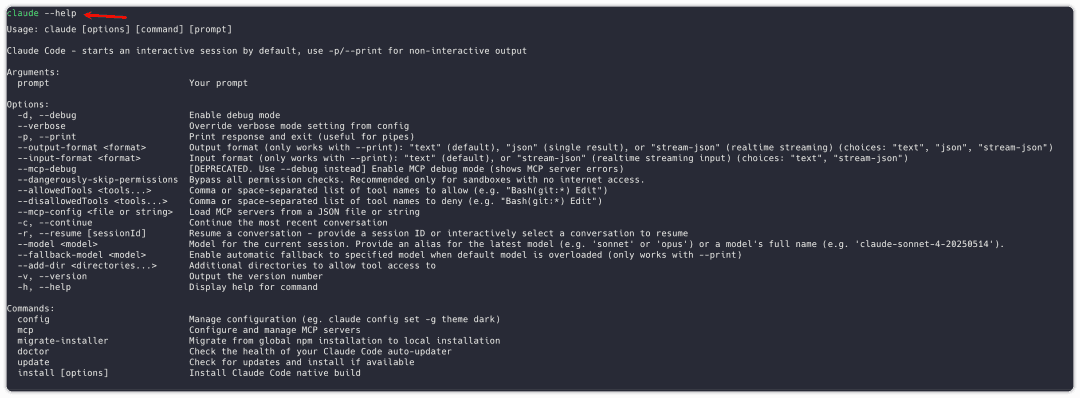
Forgot commands? One help command solves it:
bash
claude --help
2️⃣ Configuration Management - Personalize Your Claude
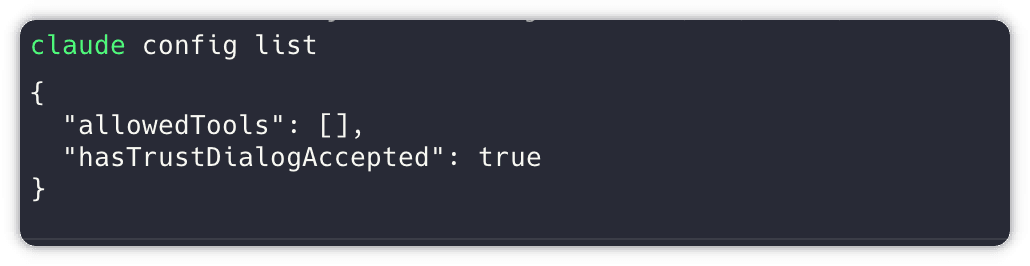
2.1 View Current Configuration
Shows current model in use, API keys, and other information:
bash
claude config list
2.2 Modify Configuration
bash
# Set default model
claude config set model claude-3-sonnet

# Set max tokens
claude config set max-tokens 4000

# Set temperature parameter
claude config set temperature 0.7
2.3 Reset Configuration
bash
claude config reset
3️⃣ MCP Commands - Make Claude Code Supercharged
MCP (Model Context Protocol) is Claude Code's killer feature, connecting various external tools.
3.1 View MCP List
bash
claude mcp list

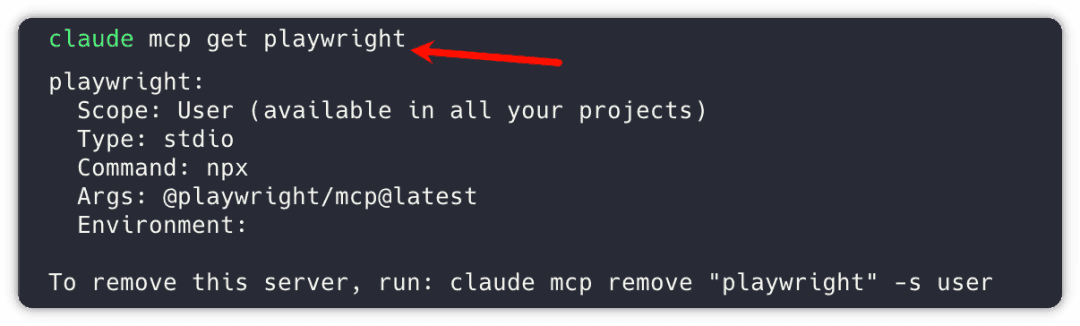
3.2 View Detailed Configuration of an MCP
bash
claude mcp get playwright
3.3 Remove an MCP
bash
claude mcp remove "playwright" -s user
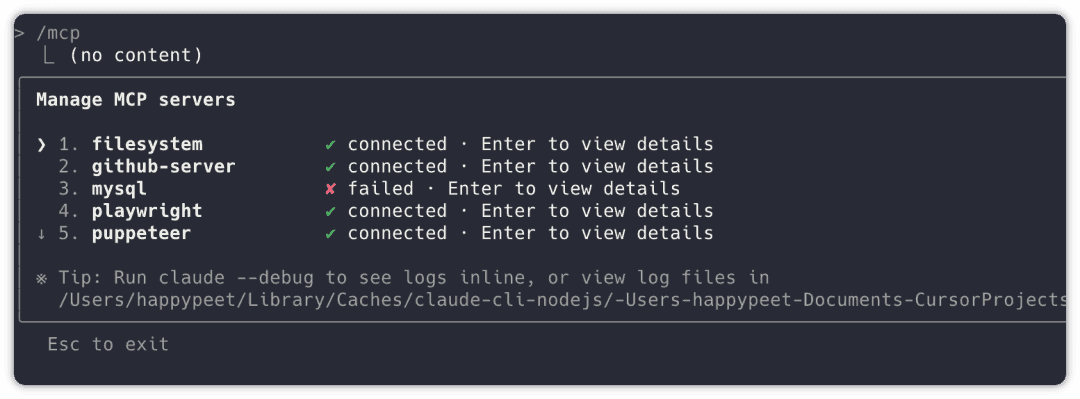
3.4 View MCP Status
In interactive mode:
bash
/mcp

This will show MCP status:
3.5 Install MCP
Install Playwright
bash
claude mcp add playwright -s user -- npx @playwright/mcp@latest
Other Common MCP Installations
bash
# Sequential Thinking
claude mcp add sequential-thinking -s user -- npx -y @modelcontextprotocol/server-sequential-thinking

# File System
claude mcp add filesystem -s user -- npx -y @modelcontextprotocol/server-filesystem ~/Documents ~/Desktop ~/Downloads

# Puppeteer
claude mcp add puppeteer -s user -- npx -y @modelcontextprotocol/server-puppeteer

# Firecrawl (replace with actual API Key)
claude mcp add firecrawl -s user -e FIRECRAWL_API_KEY=fc-YOUR_API_KEY -- npx -y firecrawl-mcp
4️⃣ Practical Example - Connecting GitHub
4.1 Install GitHub MCP
bash
claude mcp add github-server -e GITHUB_PERSONAL_ACCESS_TOKEN=YOUR_TOKEN -- npx "@modelcontextprotocol/server-github"
⚠️ Note : When assigning tokens, give appropriate permissions:
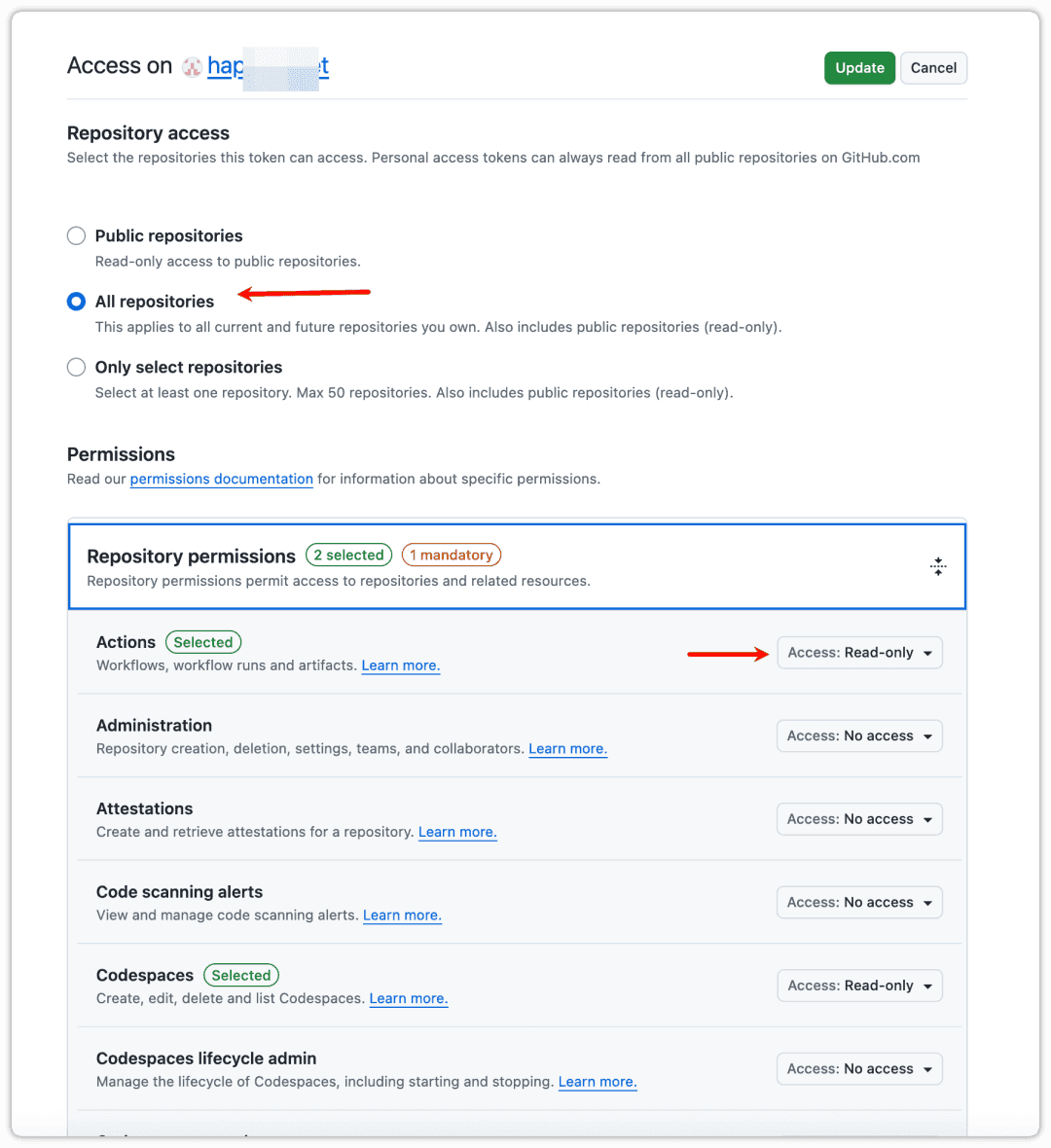
Otherwise, you'll get errors:

4.2 Using GitHub MCP
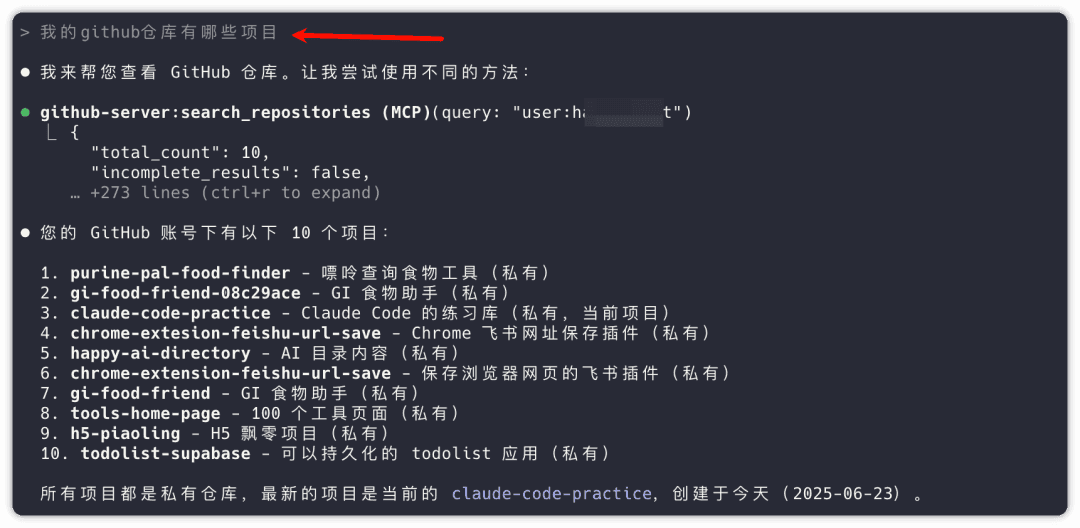
After installation, you can directly ask:
bash
What projects are in my GitHub repositories?
It accurately lists repository projects with Chinese explanations and notes:
bash
What are the recent commits for the gi-food-friend project on GitHub?
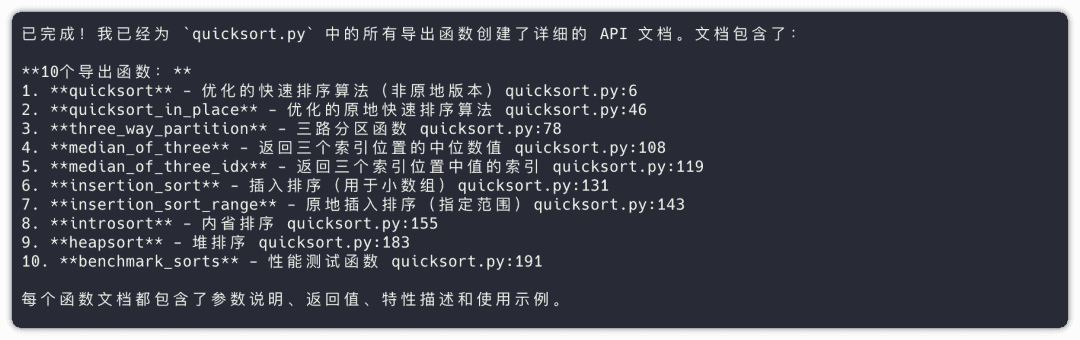
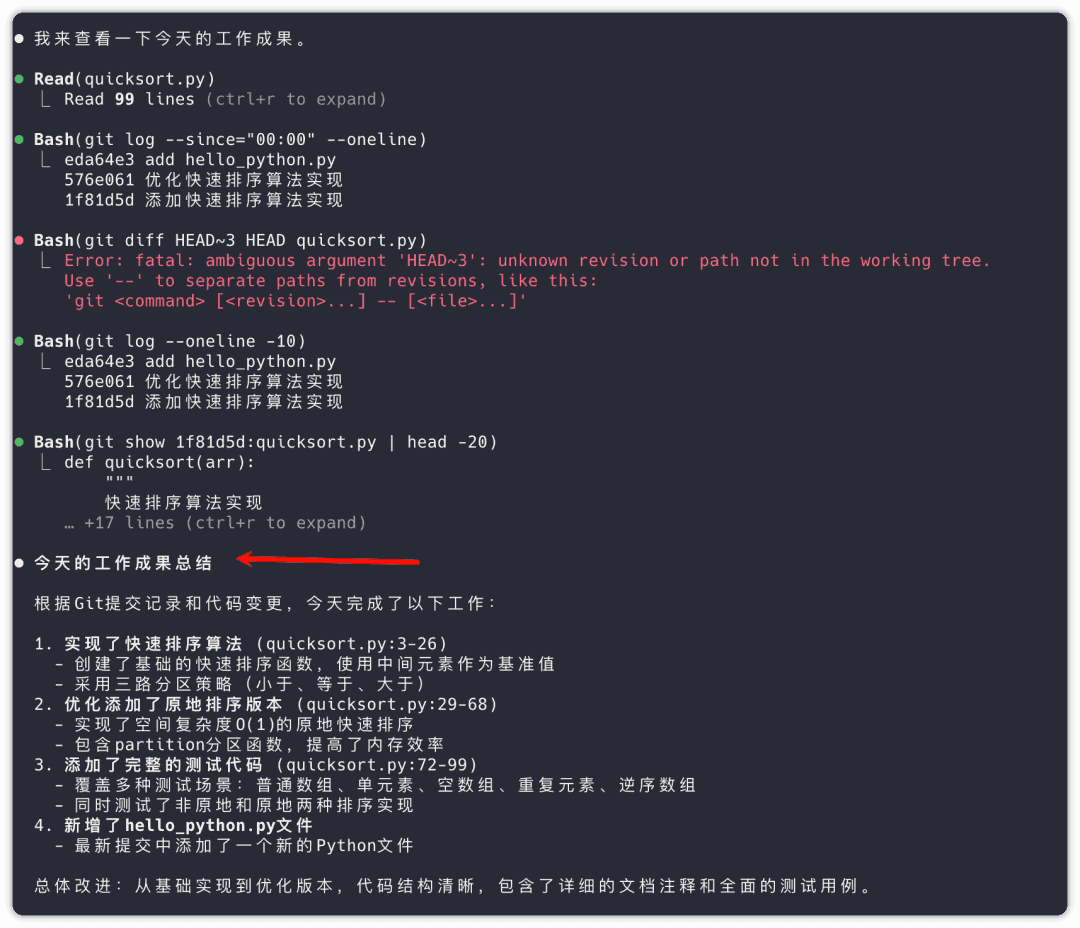
You can see detailed commit information including:
- Commit time
- Committer
- Commit message
- File change statistics
5️⃣ Advanced Commands and Tips
5.1 Session Management
bash
# Continue last session
claude --continue

# Choose from historical sessions
claude --resume

# Continue in non-interactive mode
claude --continue --print "Continue previous task"
5.2 Output Format Control
bash
# JSON format output
claude --output-format json "Analyze this error"

# Streaming JSON output
claude --output-format stream-json "Process large file"

# Plain text output (default)
claude --output-format text "Generate code"
5.3 Project-Specific Configuration
bash
# Set in project directory
claude config set --project model claude-sonnet-3.5

# View project configuration
claude config list --project
5.4 Batch Processing and Automation
bash
# Batch process multiple files
for file in *.py; do
  cat "$file" | claude "Check this Python file's code quality" > "${file%.py}_review.txt"
done

# Pipeline chain processing
git diff | claude "Summarize changes" | claude "Explain in Chinese"
6️⃣ Special Commands in Interactive Mode
In claude interactive mode, there are some special slash commands:
bash
/help              # Show help information
/exit, /quit       # Exit interactive mode
/clear             # Clear current conversation history
/mcp               # View MCP status
/continue          # Continue previous conversation
/reset             # Reset session state
7️⃣ Common Issues and Solutions
7.1 Connection Issues
bash
# Test API connection
claude "test connection"

# Check configuration
claude config get api-key
claude config get model
7.2 Performance Optimization
bash
# Enable caching
claude config set cache-enabled true

# Set concurrency limit
claude config set max-concurrent 3

# Adjust timeout
claude config set timeout 30
7.3 Debug Mode
bash
# Enable verbose logging
claude --verbose "Your question"

# Debug mode
claude --debug "Test command"
8️⃣ Best Practice Recommendations
- Use pipes wisely : Leverage
|to pass output from other commands to Claude for processing - Configure MCP extensions : Install appropriate MCPs based on your needs to extend functionality
- Save configurations : Set dedicated configuration files for different projects
- Batch automation : Integrate Claude Code into scripts for handling repetitive tasks
- Segment reasonably : For long texts, segmented processing works better
9️⃣ Command Quick Reference
| Command | Function | Example |
|---|---|---|
claude | Start interactive mode | claude |
claude "question" | One-time inquiry | claude "Explain this code" |
claude -p | Plain text output | claude -p "Generate SQL" > query.sql |
claude --help | View help | claude --help |
claude config list | View configuration | claude config list |
claude mcp list | View MCP list | claude mcp list |
claude mcp add | Install MCP | claude mcp add playwright -s user |
claude --continue | Continue session | claude --continue |
claude --resume | Choose historical session | claude --resume |
🔟 Summary
Through this 10-minute learning session, you've mastered all core commands of Claude Code:
- Basic commands : Interactive mode, one-time inquiry, pipe processing
- Configuration management : Personalized settings, project configuration
- MCP extensions : Connect external tools, extend functionality
- Advanced tips : Session management, output control, automated processing
Now you can fully utilize Claude Code's powerful features instead of just using it as a chat tool!
💡 Suggestion : Save this guide as a bookmark for reference during use. As you gain more experience, you'll discover even more interesting ways to use it!