
Windows Installation Guide for Claude Code (No WSL)
This guide shows a simple way to install and use Claude Code directly in Windows without installing WSL. You’ll set up Node.js, install the CLI via npm, configure environment variables through the Windows GUI, and start Claude Code in your terminal.
1. Install Node.js
Visit the official Node.js website and download the installer for your CPU architecture. Install it as prompted.
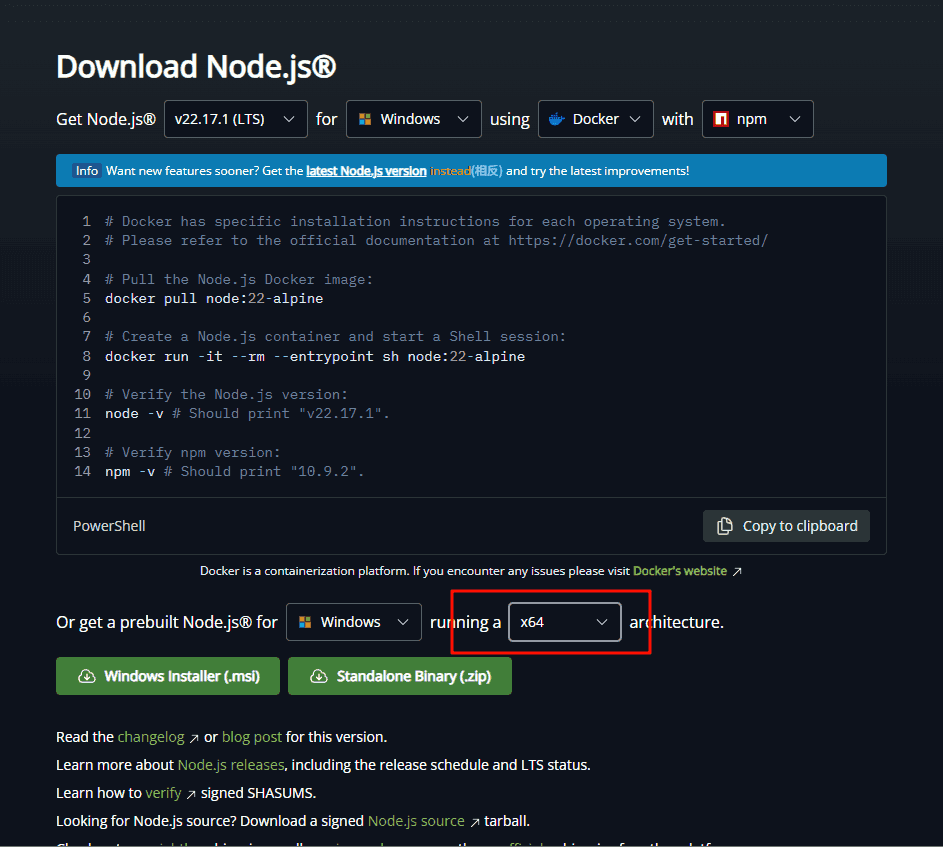
Verify Node.js after installation:
bash
node --version
npm --version
2. Install Claude Code via npm
Use the official npm registry or a mirror. Example using npmmirror (China):
bash
npm install -g @anthropic-ai/claude-code --registry=https://registry.npmmirror.com
3. Configure Environment Variables (GUI)
3.1 Open System Properties
- Press Win + R, type
sysdm.cpl, then press Enter
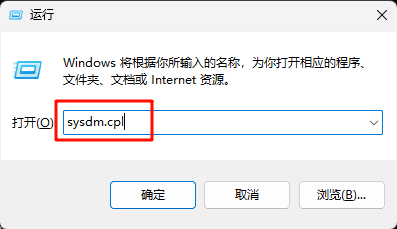
3.2 Open Environment Variables
- Go to the Advanced tab → click “Environment Variables…”
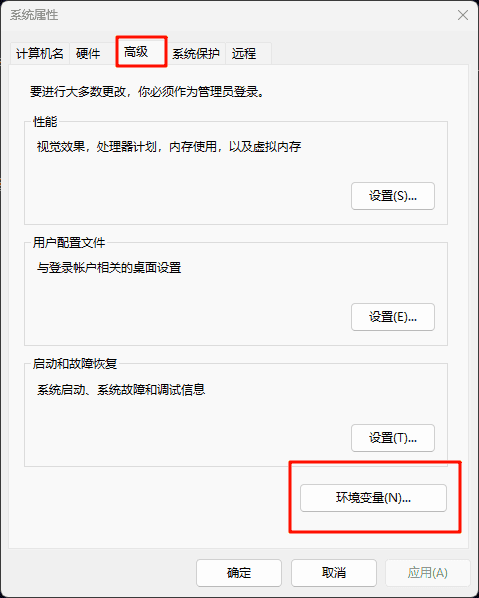
3.3 Create System Variables
- Under “System variables”, click “New…”
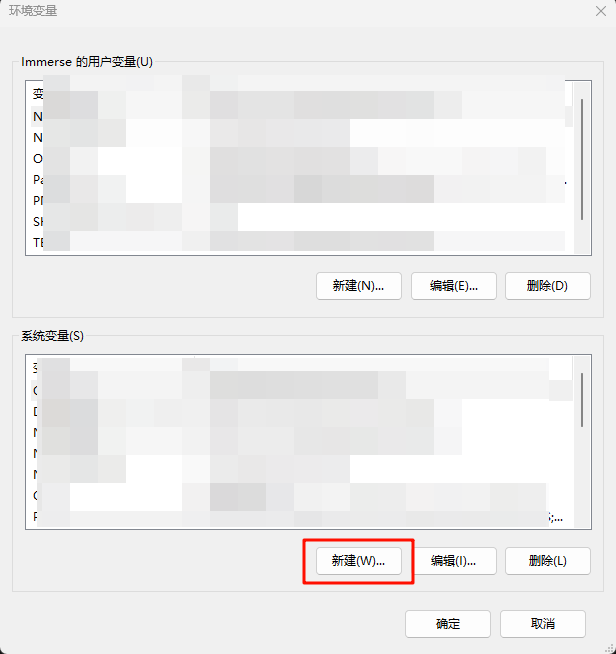
3.4 Add Two Variables
ANTHROPIC_AUTH_TOKEN(your key, e.g.cr_...)ANTHROPIC_BASE_URL(your provided API base URL)
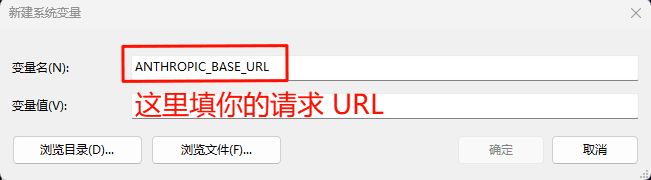
Click OK to save and close all dialogs.
4. Start Claude Code
Open CMD or PowerShell and run:
bash
claude
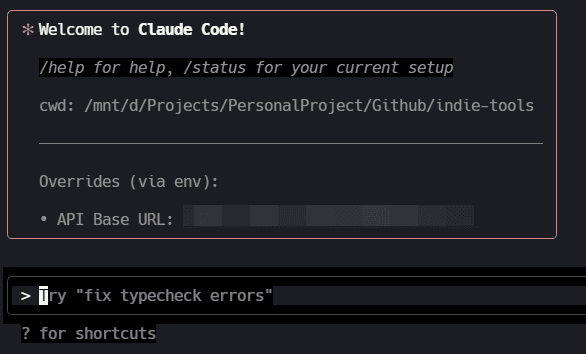
You’re ready to use Claude Code in Windows without WSL.