
Gemini 3.0 is Here! Complete Gemini CLI Commands + Shortcuts Cheatsheet!
Original article: https://mp.weixin.qq.com/s/O5s_lYL7i7U64ZouTrPfBA
Original by AI Programming Xiao Ge 2025-11-19 22:19
Gemini 3.0 is officially live today!
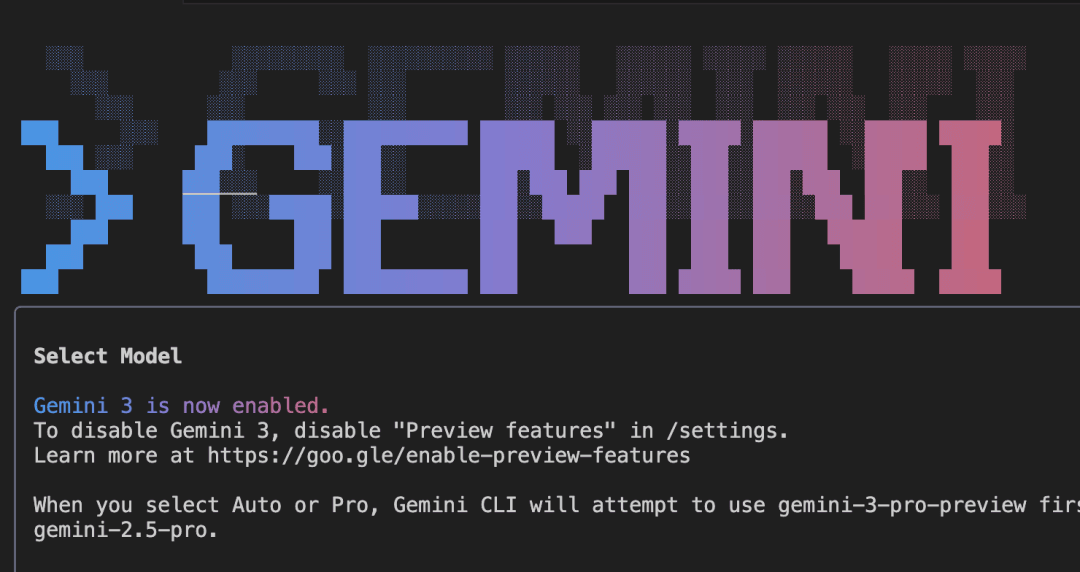
To help everyone quickly get started with Gemini CLI development, I've specially prepared this cheatsheet.
Slash Commands Reference
I. Project & Memory Management
How to make Gemini CLI better understand your project and remember what you've said
- /init (Project Initialization)
Use this first when working on a new project with Gemini CLI. It analyzes your directory structure and automatically generates a GEMINI.md config file. Think of it as an "onboarding guide" for the AI (similar to Claude Code's claude.md), helping it instantly understand your project standards.
- /clear (Reset Session)
Clears the current conversation context (memory). Use this when starting a completely new task to save tokens and prevent AI hallucinations.
- /chat (Conversation Management)
list: List all saved sessions save
<tag>: Save current progress (e.g., /chat save fix-login-bug) resume<tag>: Load a saved session, restore context delete<tag>: Delete a saved session share<file>: Export conversation as Markdown or JSON, easy to share with colleagues
- /memory (Long-term Memory Management)
show: See what it remembers add: Manually add memory (e.g., "Remember I use pnpm") refresh: Force refresh memory list: List current active GEMINI.md file paths
- /directory (Workspace Management)
add / show: Add folders outside the current directory, allowing AI to analyze code across projects.
- /compress (Compression)
Compress lengthy conversation logs into summaries. A token-saving gem that prevents AI from getting confused during long sessions.
II. Advanced Development Integration
Some advanced features
- /copy (One-click Copy)
One-click copy the last generated code block, no mouse selection needed
- /mcp (MCP Protocol)
Manage MCP Servers Includes list, desc (details), schema, auth, refresh (restart)
- /setup-github (GitHub Configuration)
Automatically sets up GitHub Actions workflows, one-click CI/CD setup
- /ide (IDE Integration)
install: Install VS Code plugin enable / status: Enable or check IDE integration status
- /extensions (Extension Plugins)
Manage CLI plugin ecosystem (list, update, explore, restart)
III. System & Preferences
Adjust system preferences for a smoother experience
- /model (Model Switch)
Configure which model you want to use
- /settings (Settings)
View and edit CLI's global configuration file
- /editor (External Editor)
Set which software opens long text (e.g., VS Code)
- /theme (Theme)
Switch CLI color schemes
- /vim (Vim Mode)
Enable/disable Vim keybindings (for Vim enthusiasts)
- /terminal-setup (Terminal Key Adaptation)
Specifically for resolving multi-line input key conflicts in VS Code, Cursor, Windsurf and other terminals
- /auth (Account)
Switch login methods
IV. Information Query & Feedback
Use when encountering issues or wanting to read documentation
- /tools (Tools List)
View which tools the current AI is authorized to use (e.g., FileSystem, Terminal)
- /stats (Statistics)
model / tools: View Token usage and tool call statistics
- /help (Help)
View all commands
- /docs (Documentation)
Open Gemini CLI's official documentation directly in browser
- /about (About)
Display version information
- /privacy (Privacy)
Display privacy policy (whether code gets uploaded, etc.)
- /bug (Bug Report)
Encountered a bug? Use this to submit feedback
Keyboard Shortcuts
Core Power Move
- Ctrl + Y : YOLO Mode (Toggle YOLO mode)
When enabled, all commands execute automatically without asking. For experienced coders only.
Flow Control
Ctrl + C : Exit program / Force interrupt AI generation
Ctrl + L : Clear Screen, only clears display not memory
Esc : Cancel current operation / Double-tap to clear input box
Enter : Send message
Editing & Cursor
Ctrl + J : Force newline. Use when you want to break line without sending.
Ctrl + X or Meta + Enter : External editor. Opens Vim/VS Code for writing long prompts.
Ctrl + S : Selection mode. Enter text selection state for easy terminal content copying.
Alt + Left / Right : Cursor jump. Move cursor quickly by word.
Shift + Tab : Auto-accept. In new IDE mode, quickly accept AI's modification suggestions.
History & Scrolling
Up / Down : View Prompt history
Page Up / Down : Scroll screen pages up/down
Summary
This is the latest Gemini CLI command reference for quick onboarding.
Currently Gemini 3.0 in Gemini CLI is only available to Ultra subscribers. If you can't wait to experience Gemini 3.0 AI programming, you can use it in Cursor, Antigravity and other IDEs.
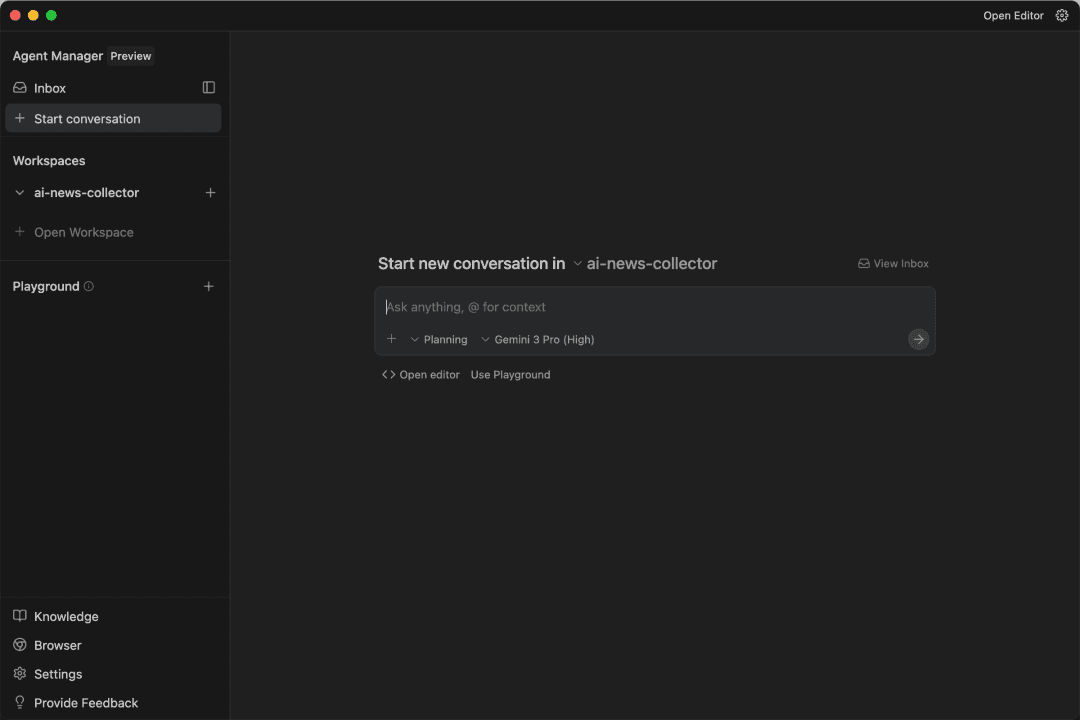
After a full day experiencing Gemini 3.0 AI programming, my first impression: coding ability is not as good as GPT-5.1-Codex or Claude-Sonnet-4.5.
But it's truly impressive in UI visual design - this aesthetic sense is way better than Codex and miles ahead of Claude!!
Prompt: Do your absolute best to design the coolest possible personal homepage HTML for me
UI design tasks might be best left to Gemini 3.0 from now on!
That's it for this one, I'm AI Programming Xiao Ge, see you next time!